Negotiating Bids through Launchpad is a simple process. But before we start, these are some important considerations:
- You will be able to track progress on your RFP through the status banners.
- Any changes you make will pop up in a different color for the other party to see, and any edits the hotel makes will also be highlighted in a different color in your portal. That way, everyone stays on the same page!
Step 1: Once you sent your RFP all hotel will have a sent status, meaning that all RFP have been sent and you are waiting for the hotels to submit their proposals and star to bid!

Receive a new bid from the hotel
Renegotiate, accept or decline a bid
Generate and Sign the Contract


? Now… let’s review in more detail
Negotiation Process
Once you have submitted an RFP, the hotel will have to review, and set new parameters depending on their policies, inventory and rates! Every change made by the hotel will appear in a different color on your end! So you will be able to see what are the terms that are being renegotiated!
At this stage you have 4 options:
Decline the bid: if this does not fit the your needs: for instance due to inventory limitations
Save and Send Later: apply any change you might need, (increase or decrease the amount of rooms, propose a new rate, add or delete consesions, make sure it’s a courtesy room block, etc.) but you keep those changes internal and chose to save to send later to the hotel.
Send a Counter Bid: this is the the most used and common option. Here you need to bid back (lower the rate, renegotiate on a courtesy block, add pre and post nights). Then the hotel gets the Counterbid for their review.
Accept Bid: Finally, when all the terms look good and meet the client’s needs/criteria, the hotel proposal includes a good rate and satisfactory concessions, you can accept the bid and move into contracting.
? During the negotiation process, you will receive in-app and over email communications, every step of the way!
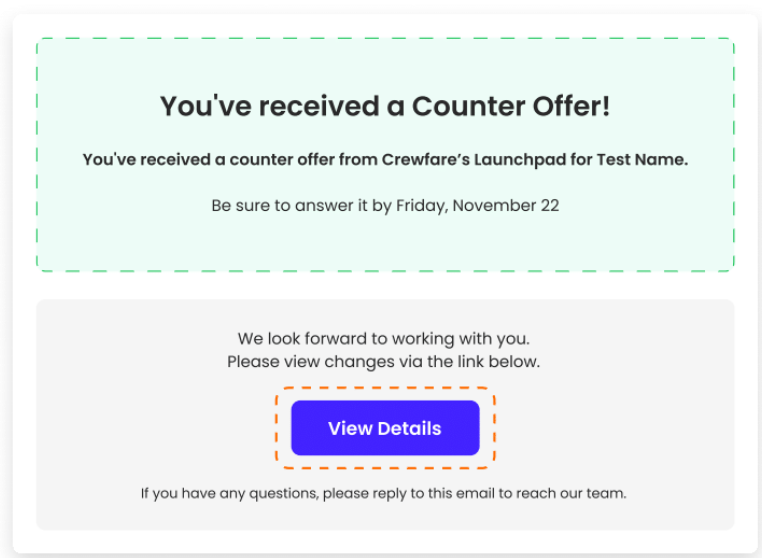
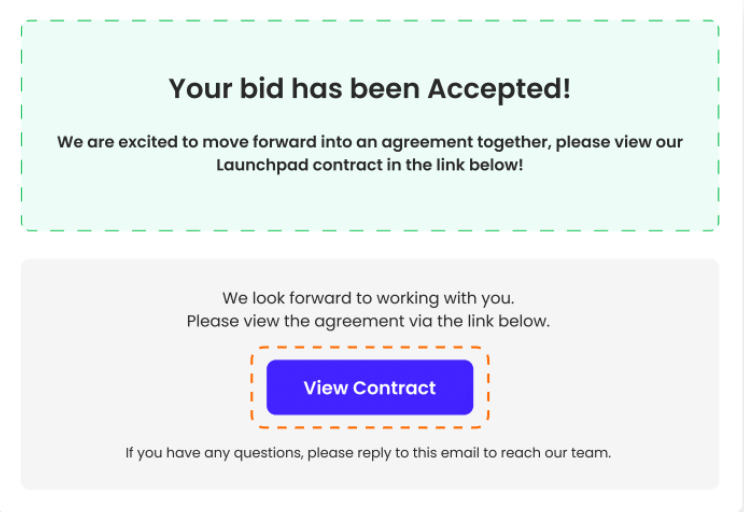
NOTE: All the terms on an RFP can be changed and negotiated. If any term is non-negotiable, it can be locked with the lock icon.
Contract Signature
And voilà, you’re almost there!
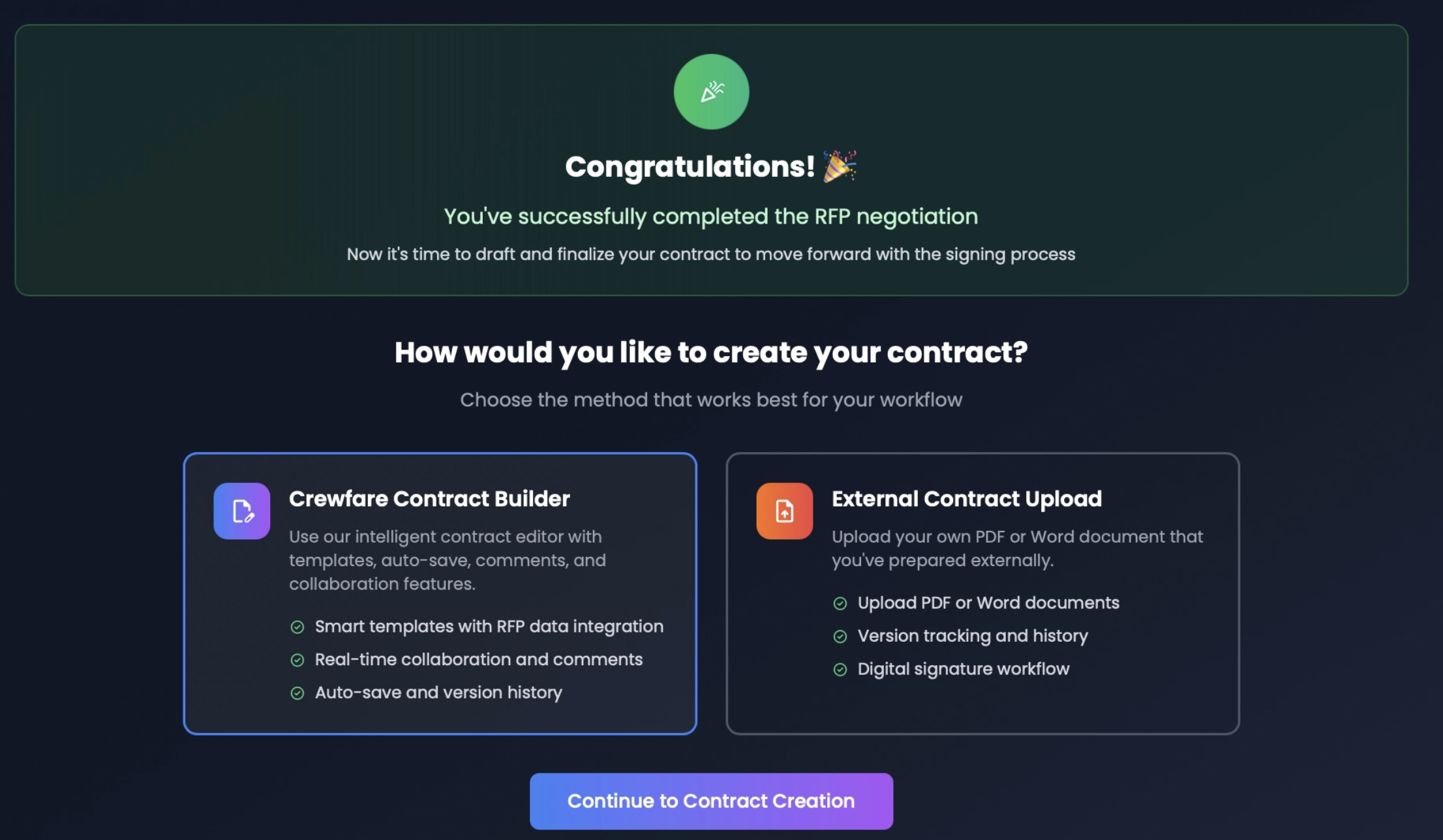
This is the final step to complete the RFP process.
Click Accept Bid (bottom right)
Select the contracting method:
Complete your billing details:
- Company Name
- Event Planner Name
- Event Planer Title
- Company Address
- Company Telephone
- Company Email
- Accounting Email
- Accounting Name
- Reward Number
- POC Team Name - Travel Lead / Manger’s Information
- POC Team Email
- Effective Date - contract effective date: it auto populates
Signing Order:
- Hotel signs first
- After the hotel signs → You sign
- Once both parties have signed → The contract is fully executed
Contract Flow:
- Once all information has been completed correctly, the contract will automatically populate and be created. Please review the full contract before sending it. Do a quick check to make sure that all rates, dates, concessions, contract type (courtesy or attrition), and any additional terms added at the RFP level are showing correctly.
- If everything looks correct, click the green button to send the contract to the hotel for review. The hotel will receive an email notification. However, if you have not received any news or comments, please reach out directly to the POC to finalize the contract.
- Once the hotel reviews the contract, they can complete the contract information, review it, and sign it. This is the perfect scenario, but it does not always happen this way. Remember that our contract is fully editable on both ends, similar to the negotiation process. The hotel can change or add information, and all changes will be highlighted for you to review and accept.
- Once both sides have approved the contract, and only then, can the contract be signed.
Was this article helpful?
That’s Great!
Thank you for your feedback
Sorry! We couldn't be helpful
Thank you for your feedback
Feedback sent
We appreciate your effort and will try to fix the article