Step 1: Create the RFP
Event Definition:
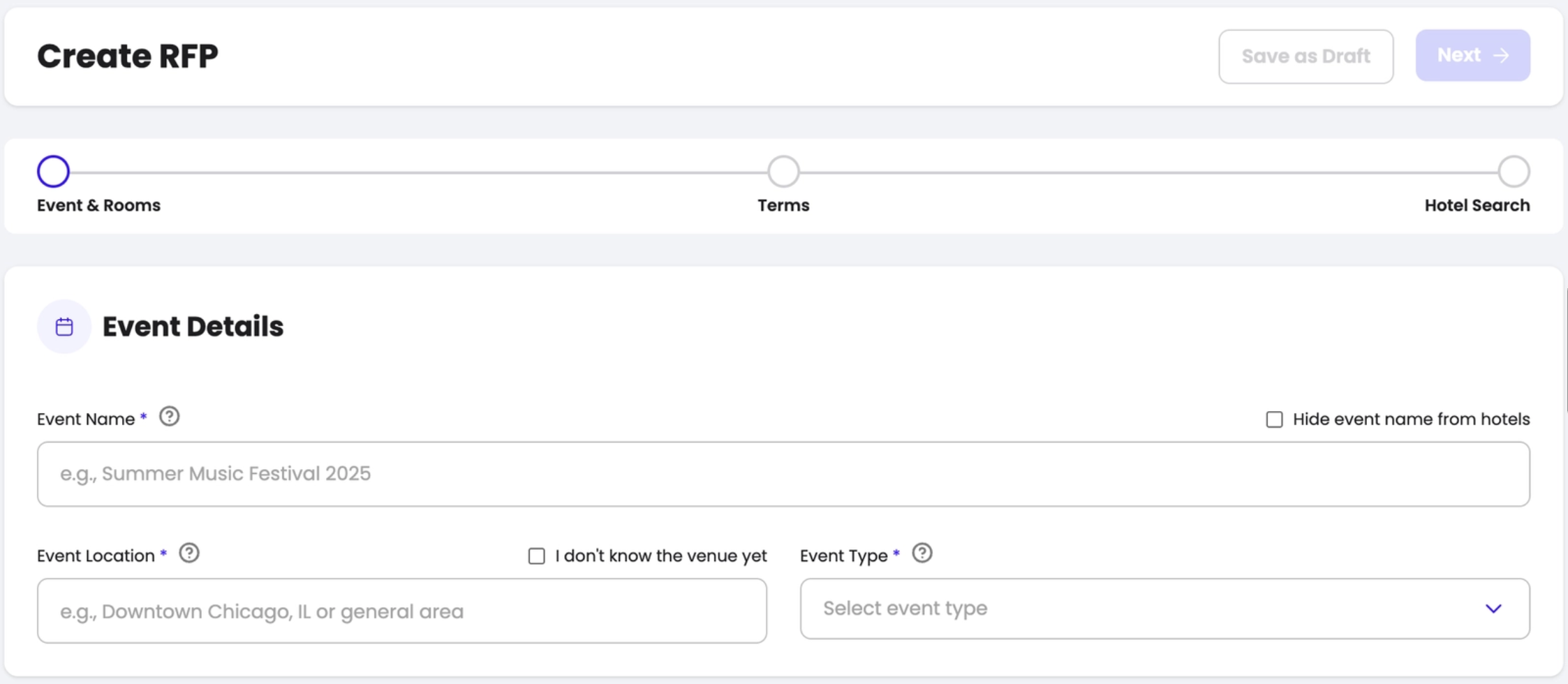
You will have to go to your "RFP" dashboard, and click on the button "Create RFP". This button gives you the possibility to either create a new RFP from scratch or duplicate an existing RFP.
Right after selecting the button, you will be redirected to the page where you will create your RFP. This is where you will enter all the details of your Event! The fields marked with are mandatory fields.
- Event Name
- Event Location
- Event type
The address can be selected, or entered manually.
Then, you will complete the ROOMING details of your RFP. Please add the quantity of ROOMs per night, based on the pre-determined sourcing strategy.
- Event dates
- Room types
- Room quantities
Finally you will enter all concessions: parking, early check-in, late check-out, breakfast, upgrades, wifi and any custom requests that you want to enter. The concessions work in a drop down format, and you can work with existing options or create custom ones too.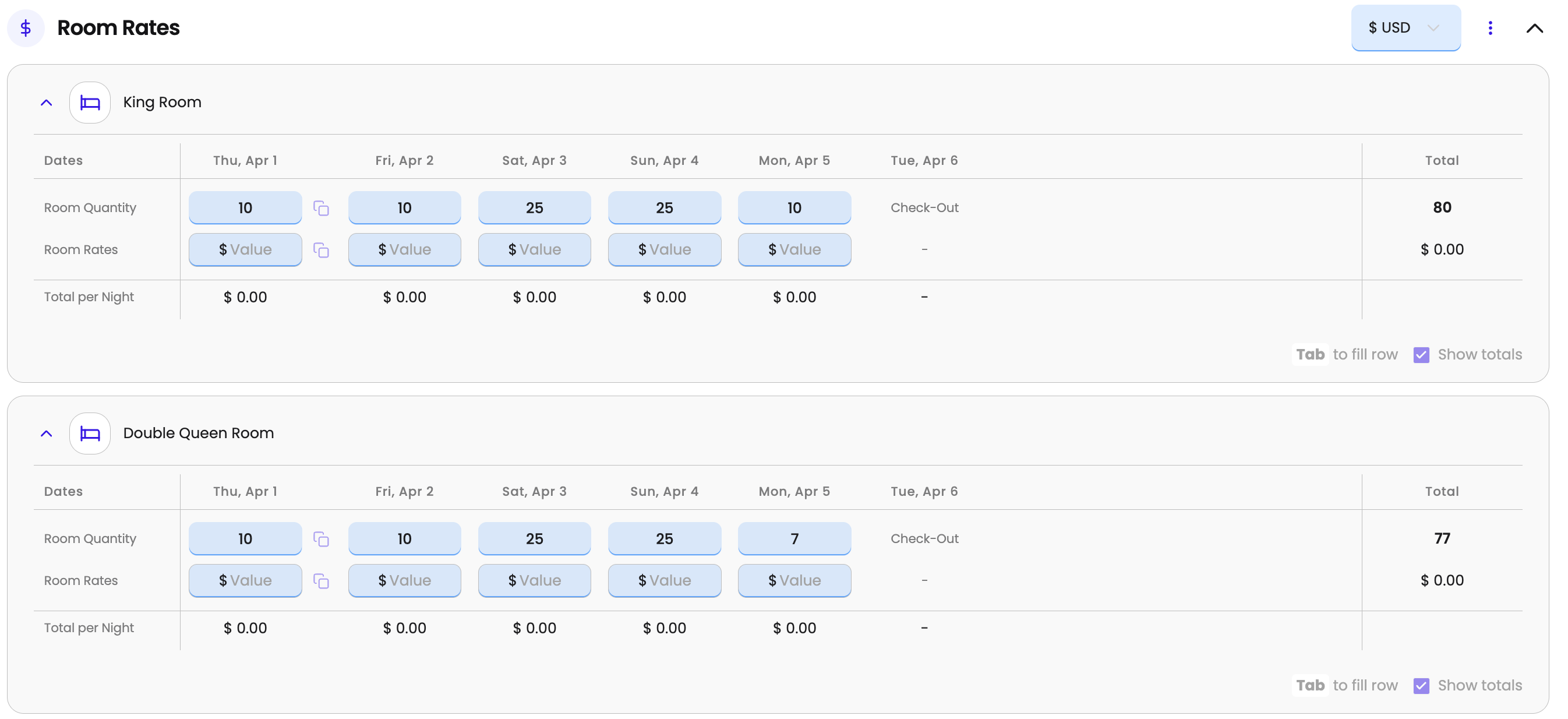
RFP Terms:
The next step would be to set the specific terms for your RFP. Below you will find some definitions that will make your sourcing job easier:
- Attrition contracts imply that the % of rooms selected will be honored and paid for even if they are not occupied.
- Rebate: The rebate is a fixed amount per room or per night that the hotel pays to us. In this case, the rebate is paid after the event takes place.
- Cut-off date: you will be able to enter how many days before the event you will set the cut-off date.
- Response Due Date: after this date, the RFP will no longer be available and the bid will have to be resent, and the terms will have to be renegotiated.
- IATA#: IATA stands for International Air Transport Association, and the IATA number is a unique identifier for travel agencies and other airline ticketing entities - If you have an enterprise account, you can enter your own IATA number for commission collection.
After adding the terms of your contract, you will have the possibility to send a note to the hotels. This step is highly recommended since it will help you get faster and better responses from the hotels.
Step 2: Hotel Selection
On the hotel’s selection tab you will be able to review them, select them and bulk send RFPs to them as you can see below: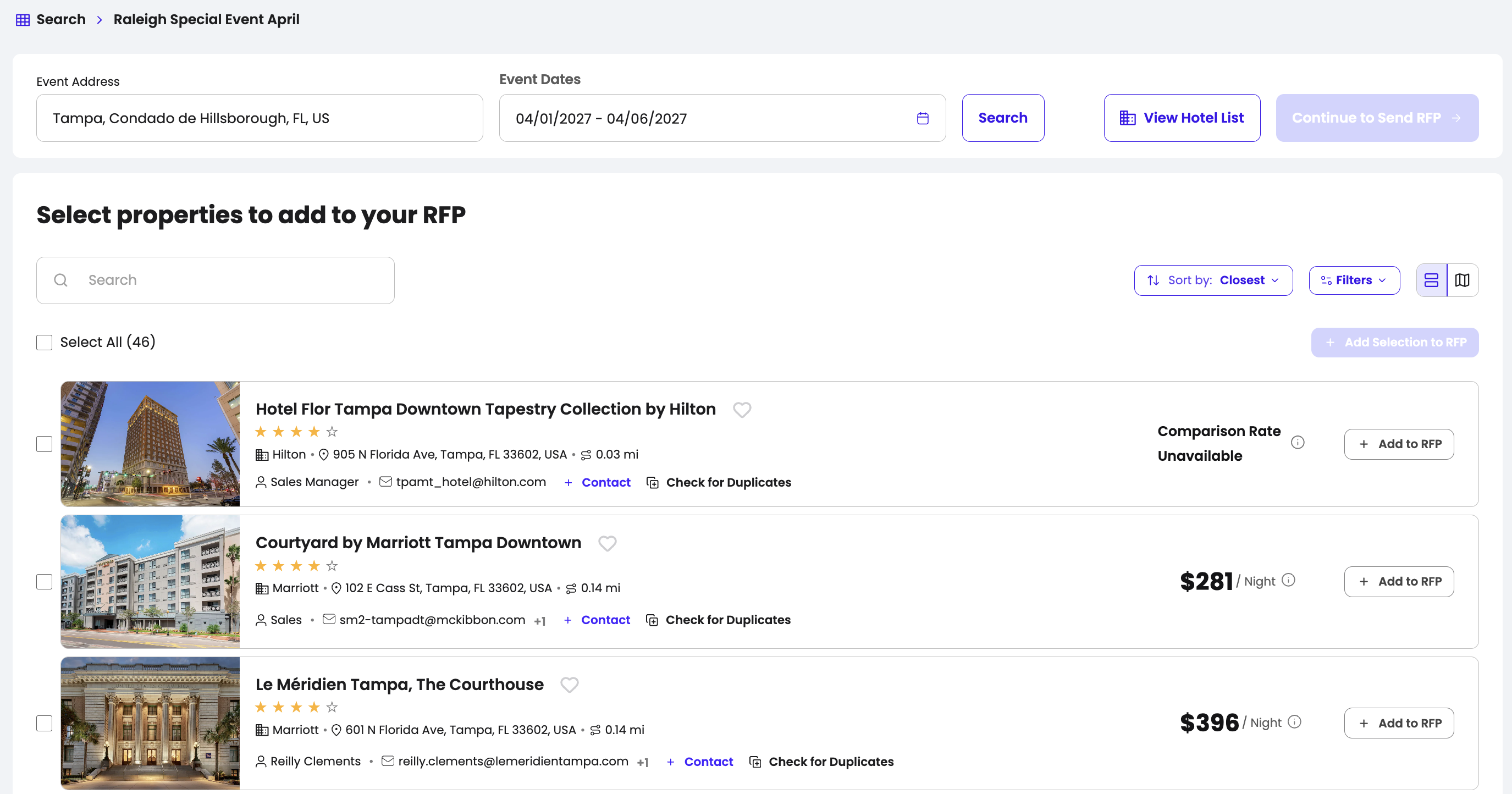
Once you have selected them, you have to “Add selection to RFP” and “Continue to send RFP”.
Finally, you will have to click on “Send RFP”, review the summary page, and send for hotels to receive your bid. Once sent, they will show as a drop down named “Sent RFPs”.
Step 3: Send the RFP and Start Negotiating!
After assigning the hotels, you will be able to send the RFP. Once you have done so, your RFPs will show on your "MY RFPs" dashboard, and the status of the RFP will be sent!
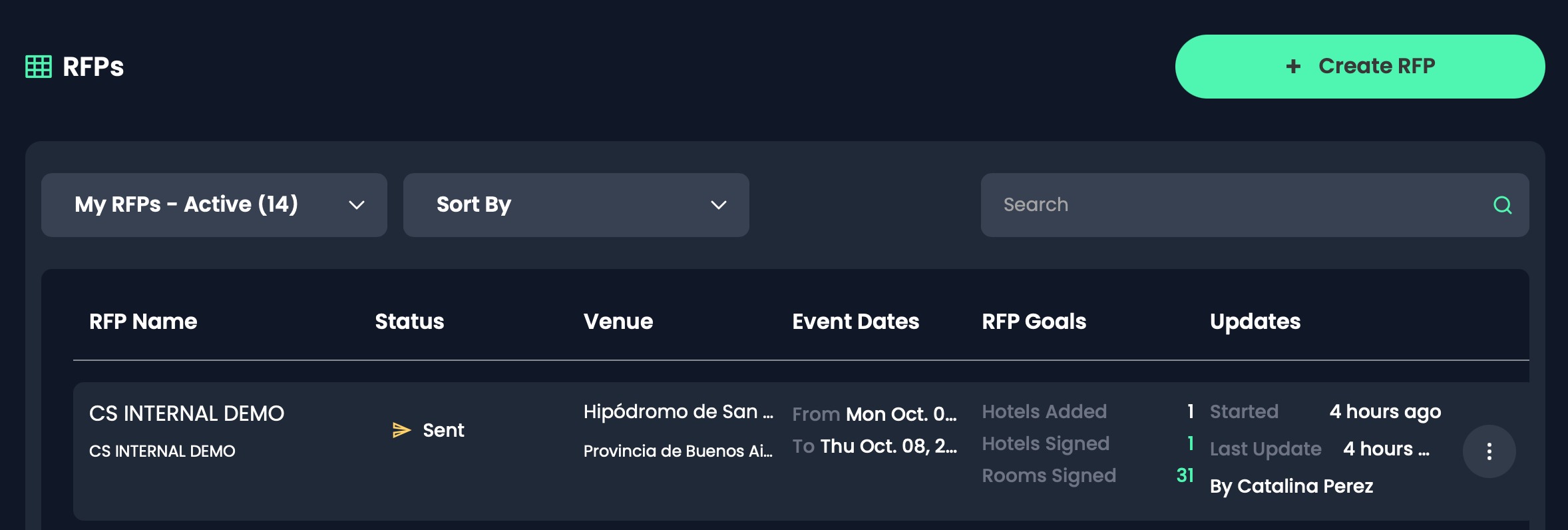
Now, it's the hotel's turn to work on your RFP! You should receive a bid from them shortly! STAY TUNED!
Was this article helpful?
That’s Great!
Thank you for your feedback
Sorry! We couldn't be helpful
Thank you for your feedback
Feedback sent
We appreciate your effort and will try to fix the article