New to Launchpad? This guide is for you!
No processes here—just a quick walkthrough of features and where to find key info. For process details, check out the procedures folder through this link.
We get it, learning new tools can be tiring, but Launchpad is SUPER easy. Let’s dive in!
Here are the main features you’ll find in the portal:
- RFP Dashboard
- Messages Section
- Files Section
Let's take a look at them one by one...
RFP DASHBOARD
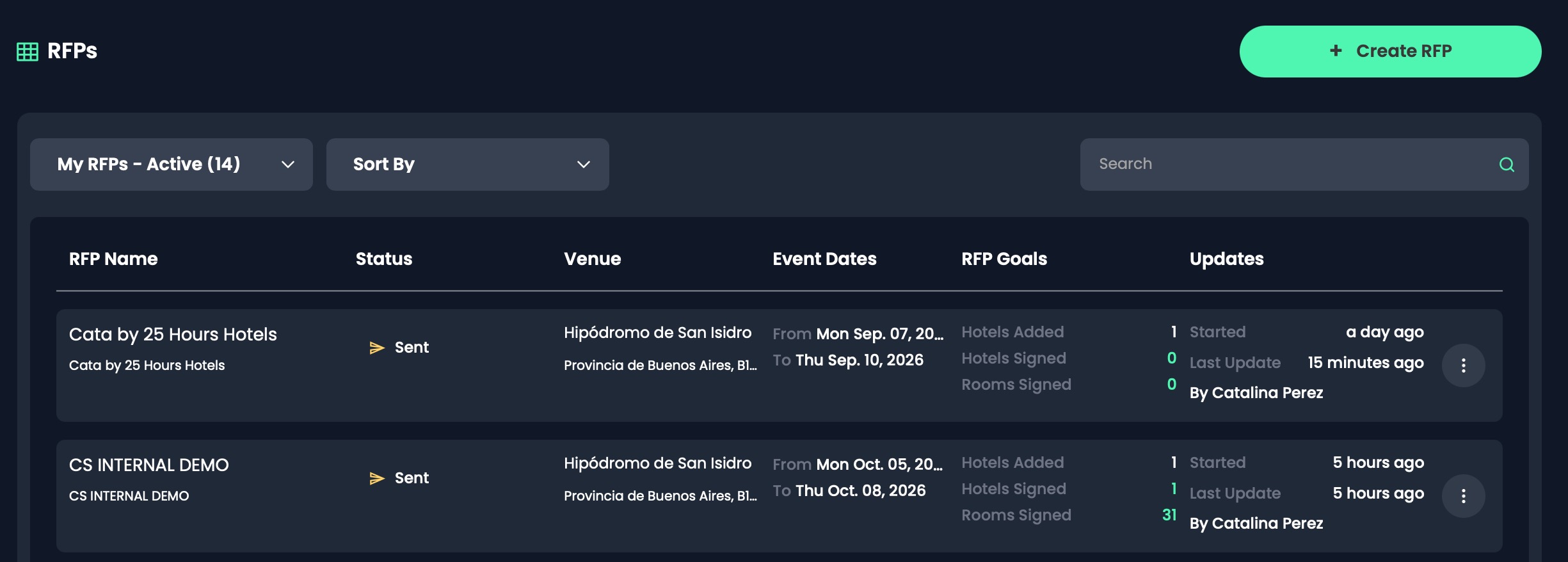
RFP CATEGORIES:
On your RFP dashboard, you will be able to see your RFPs categorized for easy tracking. These are the different categories available:
- My RFPs: here you will see the RFPs you are currently working on.
- All Active RFPs: all RFPs within your organization. You will have the ability to sort through a specific individual.
- My drafts: Any RFPs that have not been sent out will show in this section.
- Archived RFPs: These are the RFPs that have been completed.
If you are looking for an RFP in particular, you can use the search bar to locate a specific RFP, event, or hotel!
RFP DETAILS:
If you open an RFP, you will be able to see the following details:
- RFP Name: This is very important because if you forget the name of the RFP, it will be harder for you to find it.
- Event Name: This information is for internal organization and will not be disclosed to the hotels.
- Venue: This is the address where the event will take place.
- Number of hotels
- Number of rooms
- Estimated attendees
- Event address: this is the address of the venue for your event!
DATES:
Then, you will be able to specify the event dates:
- Check-In: this is the preferred check-in date for your attendees.
- Check-Out: this is the preferred check-out date for your attendees.
- Response Due Date: this is the final date by which you expect to receive a response from the hotel.
- Decision Date: this is the final date to reach an agreement.
- Bid Expiration Date: after this date, if no agreement is reached, the bid will expire and you will have to submit a new RFP to the property.
ROOM TYPES:
- The first column shows the room name: this should be exactly as it appears on the hotel's website.
- The second column specifies the room type (single, double, suite, etc)
- The third column provides information about the Configuration (1 bed, 2 beds, double queen bed, etc)
- The fourth column specifies the occupancy limit on a specific room type
- The last column specifies the cost of adding a guest to the room
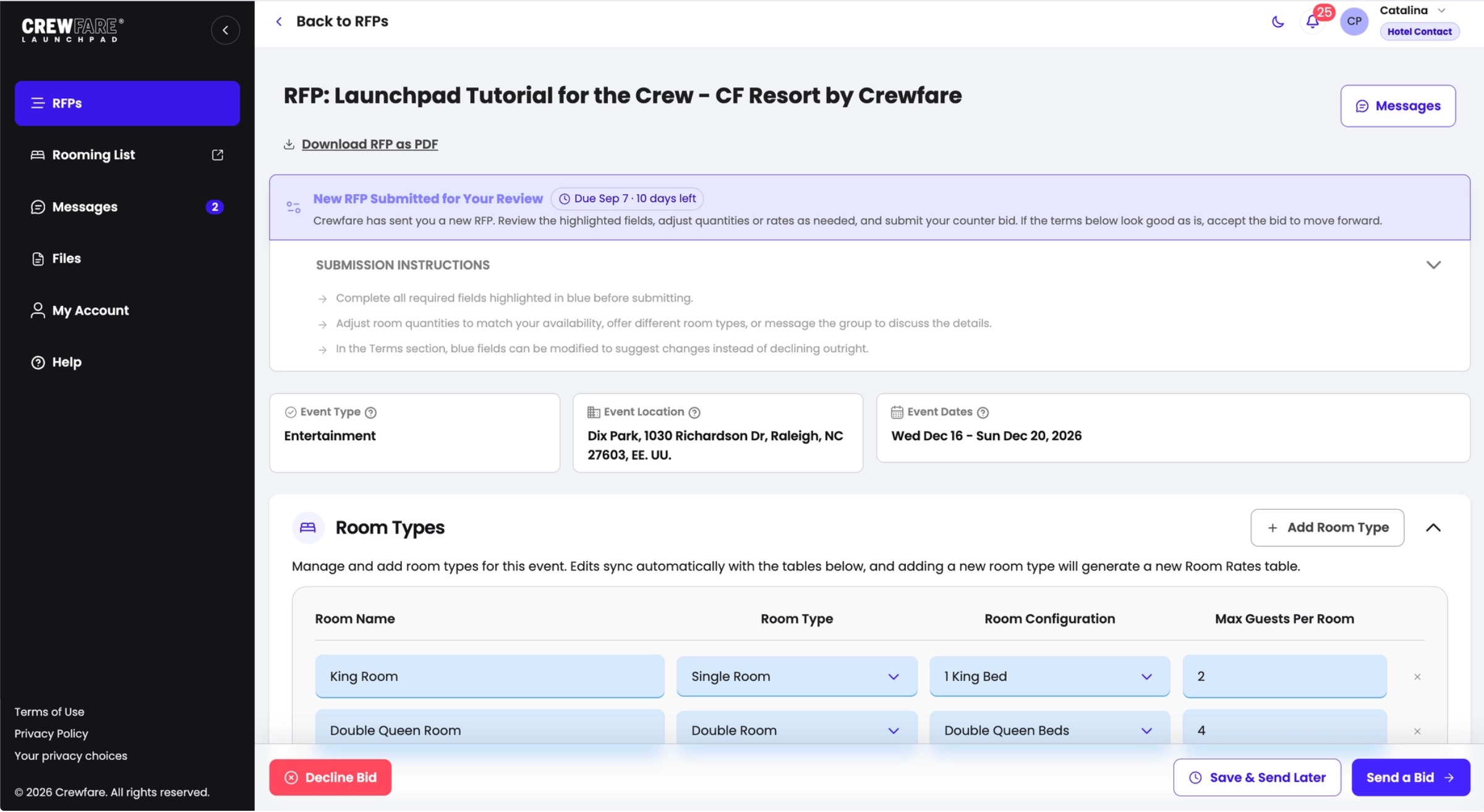
NOTE: The changes you make on the "Room Type" section, will automatically reflect on the "Room Rate" section.TERMS:
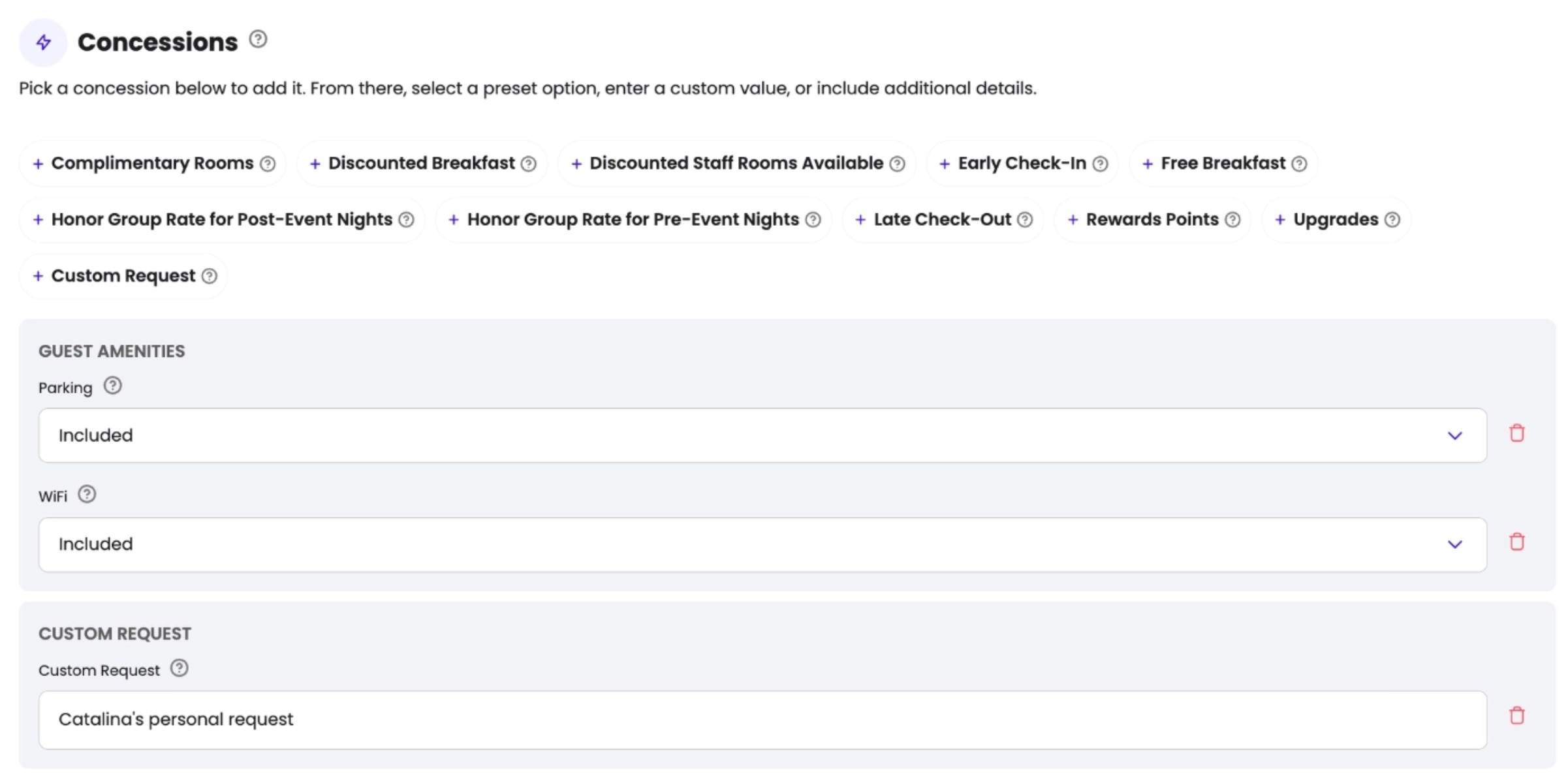
All the terms can be modified! Let's take a look at what each of these terms is:
- Attrition: Percentage of rooms or services you can reduce without penalties. You can choose your attrition rate or accept a Courtesy Block.
- Cut-off date: The deadline for the Travel Coordinators to submit the Rooming List and release unsold rooms (if applicable).
- Commission (%): The percentage the hotel will pay to the event organizer handling the RFP.
- Rebate: A fixed amount the hotel pays to the event organizer per night or room.
- Group Rate Honored: The hotel guarantees the group rate will be honored based on the block’s volume.
- Days pre and post-event: Access to rooms before and after the event—also known as “shoulder nights.”
- Comp Rooms: Complimentary rooms the hotel provides based on a certain number of rooms booked.
- Suite Upgrade: Upgrades to suites when available.
- Reward Points: Points the event organizer will earn.
- Staff Rooms: Rooms allocated for the event's staff.
- Staff Discount: Discount provided for staff reservations.
- Resort fee: If applicable, the hotel should specify the amount of the resort fee that the guests will pay at the property.
- Reservation Submission: This clarifies which is the preferred format for room submission.
- Billing: This states what the event organizer will be responsible for paying, and how it will be paid.
- Incidentals: In case the hotel charges an incidental deposit upon arrival, it should be stated in this section.
RFP STATUSES:
You can easily track the status of your RFPs by reviewing the visible statuses. The RFP statuses are updated automatically as well.
Sent RFPs: Displays "Sent" once the RFP has been sent to the hotel.
Bid Opened: Shows when the hotel has viewed the bid.
Negotiation RFPs:
- "Bid from Hotel": Indicates the hotel has submitted a bid.
- "Counter Submitted": This appears when you have sent a counter bid.
- "Counter from Hotel": This appears when the hotel has submitted a counter bid.
Declined RFPs: If a hotel declines your RFP, it will show "Declined by Hotel," along with the reason. Use this information to negotiate further if needed.
RFPs on Signing Process:
- "Signed by (Your Company)": Indicates your company has signed the contract.
- "Signed by the Hotel": Indicates the hotel signed first.
Completed RFPs: Displays "Signed by Both Sides" once the contract is signed by both parties.
Tip: Ensure the terms in the contract are accurate before signing. The terms auto-generate based on the negotiation outcomes.
MESSAGE SECTION
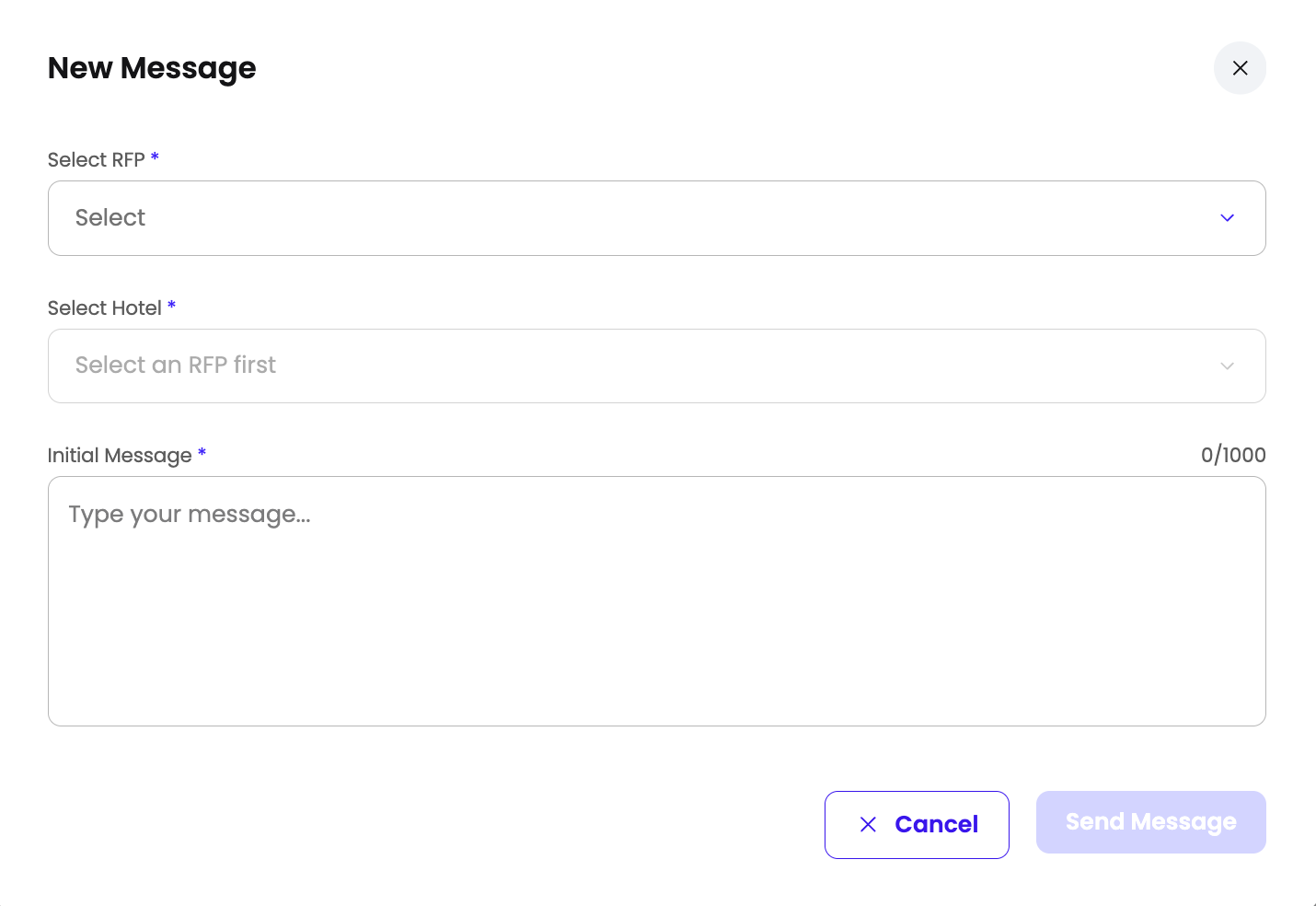
Need to discuss a specific RFP term? Good news—no more 300 emails and endless back-and-forth! With our messaging system, you can negotiate directly with the event organizer until you reach an agreement. For example, want to adjust the commission percentage? Just update it and send a quick message like:
"Hello! We cannot accept attrition contracts, would you be open to negotiating a courtesy block?."
Easy-breezy—one sentence, problem solved!
FILE SECTION
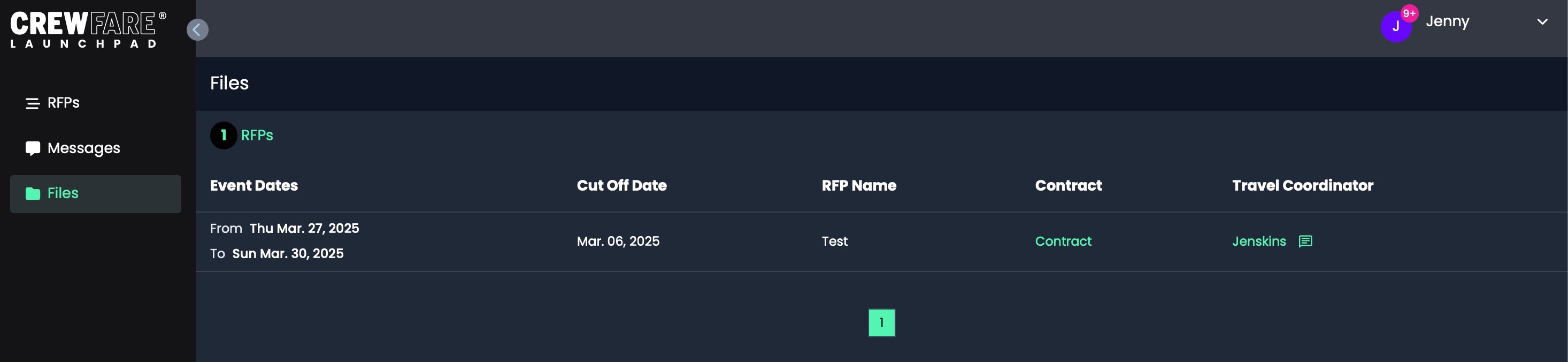
Here you will find your signed contracts! These are contracts that have been fully executed and signed by both parties. You will have the possibility to search, review, and download the documents from this section!
USER SECTION:
Here you will see what all your team members are working on! Teamwork makes the dream work and we know how important it is to keep a dynamic workflow!
NOTE FROM THE EXPERTS:

Okay... We know it was long, sorry, but at this point, you are a Launchpad Expert already. We recommend you to take a look at the "Procedures" folder to know how to receive and negotiate RFPs!

If you have any questions! Drop us a line at launchpadsupport@crewfare.com, we will get back to you ASAP!
Was this article helpful?
That’s Great!
Thank you for your feedback
Sorry! We couldn't be helpful
Thank you for your feedback
Feedback sent
We appreciate your effort and will try to fix the article